Tablet in kiosk mode
Where nobody staffs the gate, a tablet in a stand lets residents check themselves in. Staff keep control: they start it, and the pool PIN ends it.
- No resident list shown
- Three ways to identify
- Staff stay in control
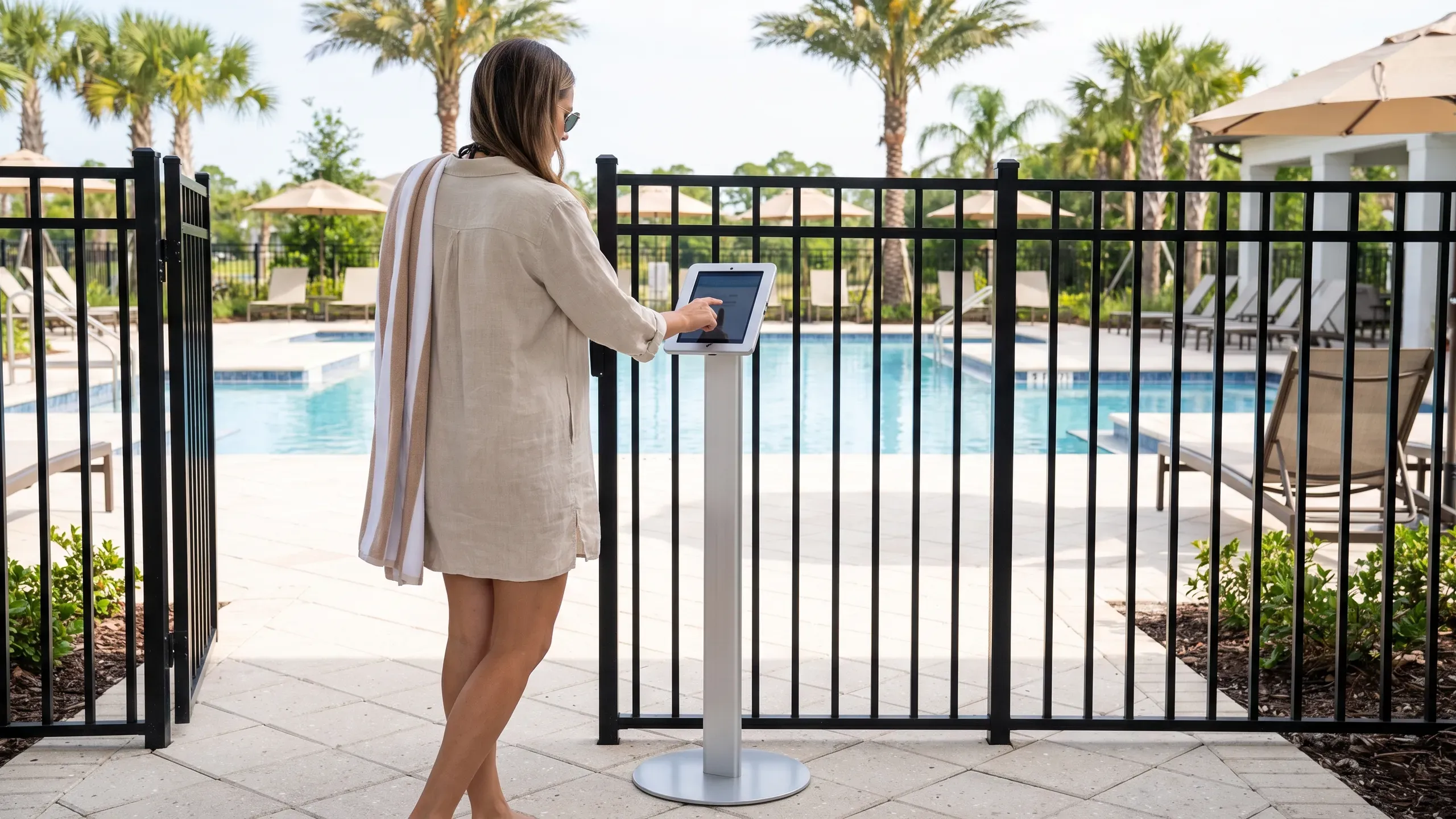
What a resident does
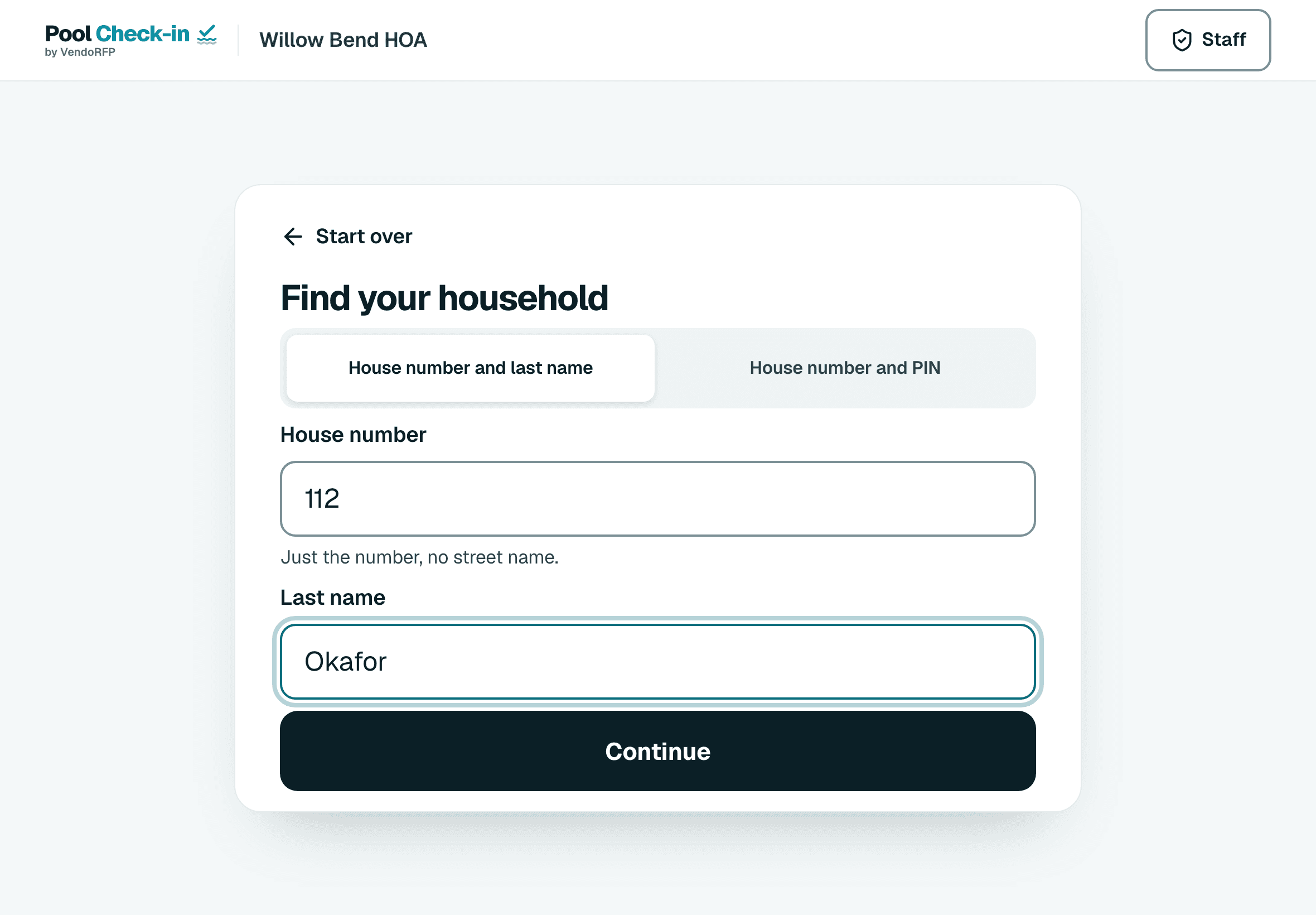
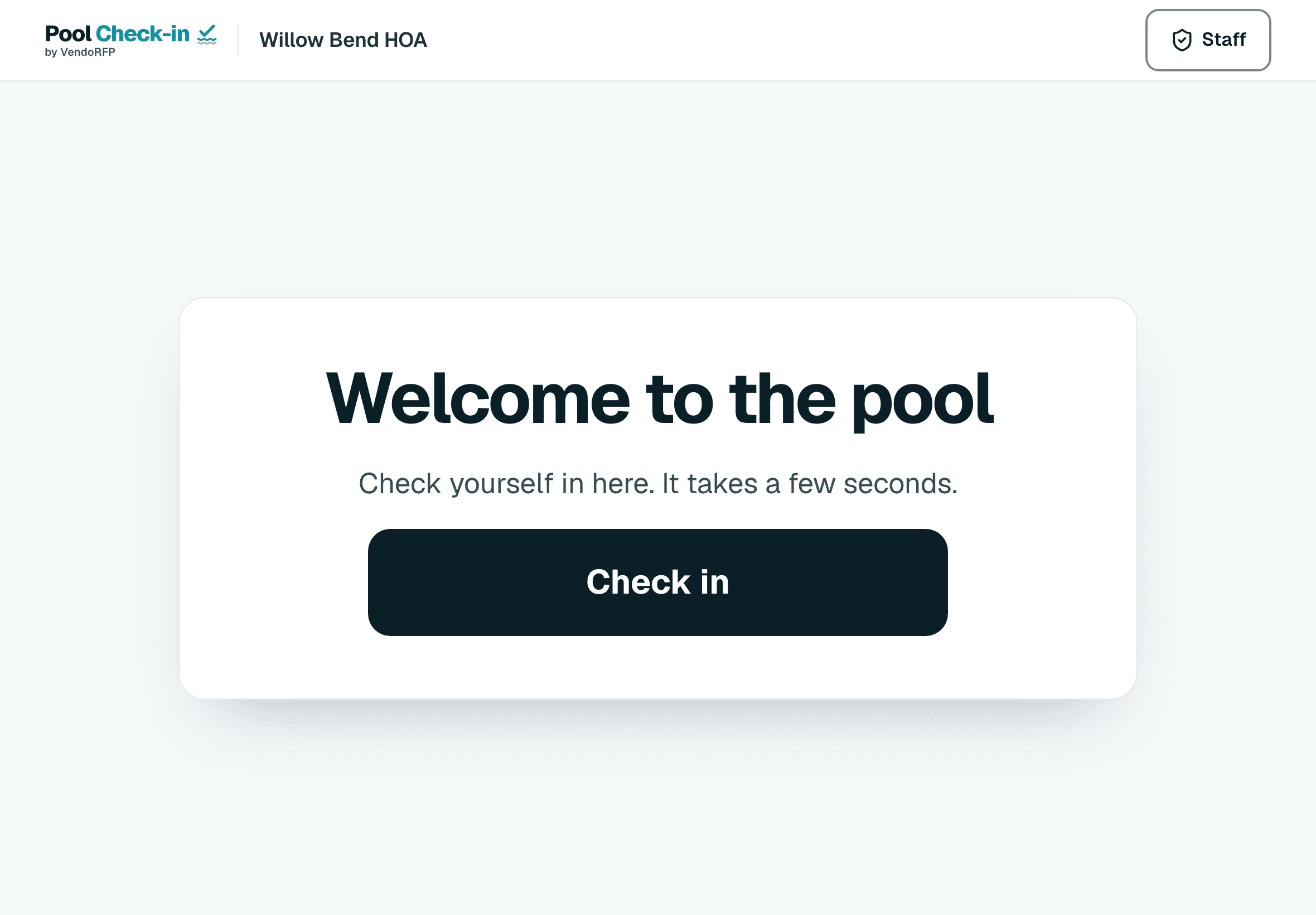
- Starts at the welcome screen. A staff member started the kiosk from the gate tablet with one tap. The resident taps Check in.
- Finds their household. A house number and last name, a house number and household PIN, or a printed QR household card. The kiosk never shows a list of residents.
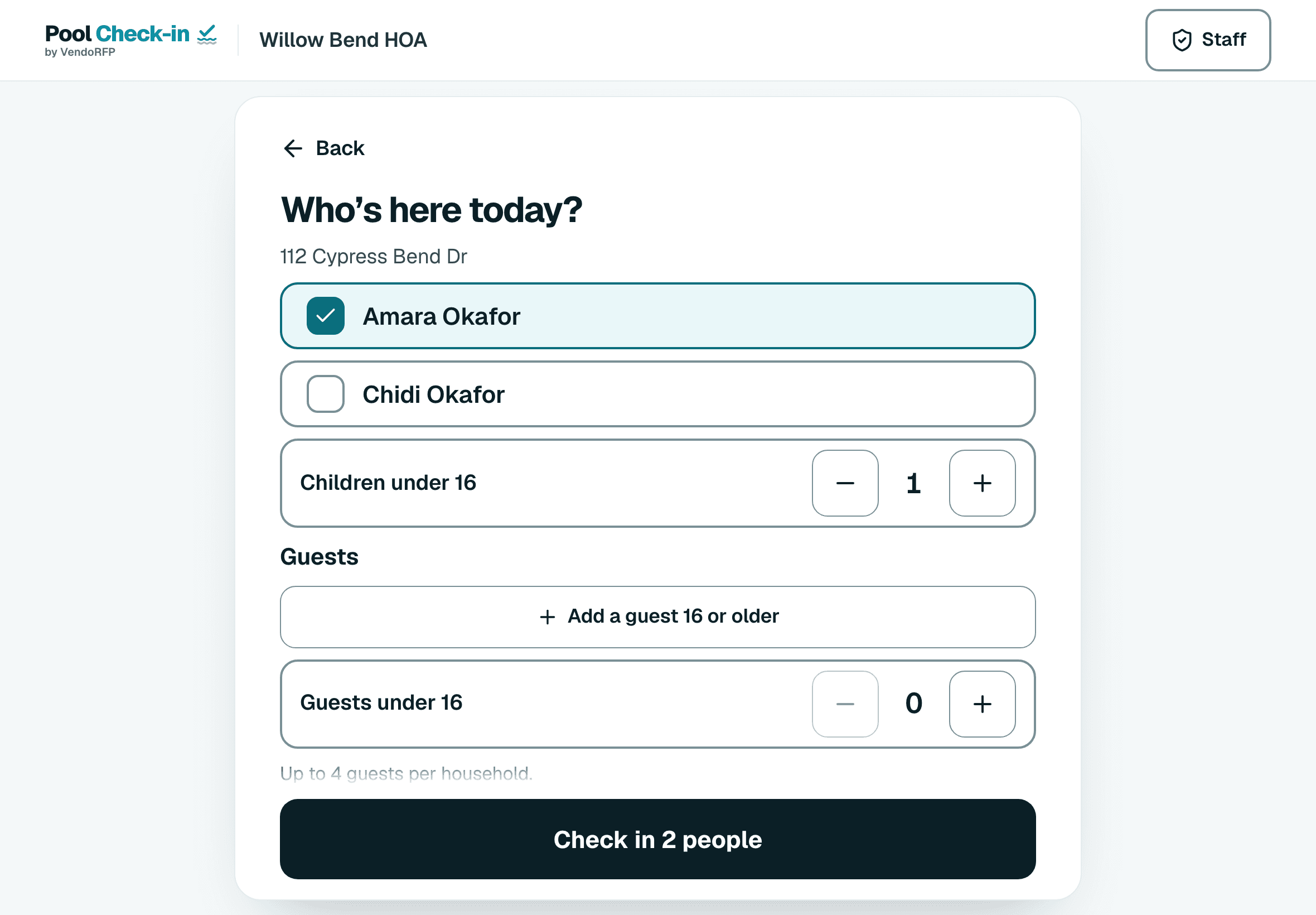
- Says who is here. They tick who is with them, count children and add guests, up to your guest limit.
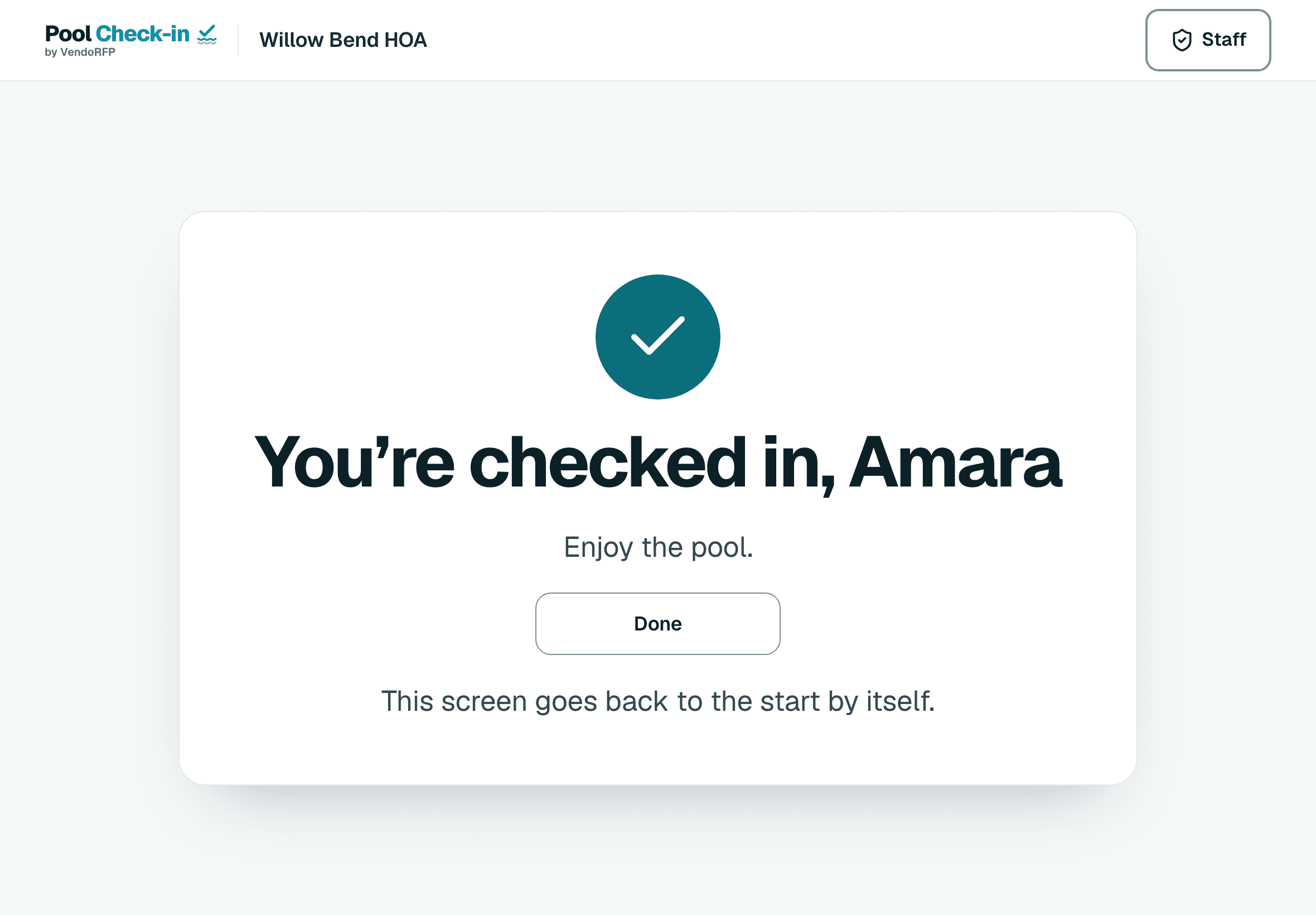
- Is done. A confirmation shows, and the screen goes back to the start by itself for the next person.
How the kiosk stays in your control
Switched on per community
Self check-in is a setting in each community. Every check-in made at a kiosk is recorded as a kiosk check-in.
Staff start it, a PIN ends it
A staff member starts it from the gate tablet with one tap. The pool PIN ends it.
Standing is checked
A household that is barred, suspended or behind on dues is sent to staff.
QR household cards
Print one card per household from the app. A hand scanner reads it on any device. A tablet's own camera reads it only in browsers with barcode detection, and Safari on a tablet has none, so with Safari use a hand scanner or the other two ways.
Hours still apply
The kiosk follows the same opening hours and guest limit as the staffed gate.
Works with staff
Use the kiosk alongside a staffed gate, or on its own at a gate nobody staffs. Many communities switch between the two over the season.
Stands and signs
Floor stands for the tablet and printable signs for the gate are in the Shop.
Three screens, start to finish
Stands and printable signs
The Shop has floor stands for the tablet and signs to print for the gate.
Try it with one pool, free
Sign up, add your hours and your list if you have one, and register a tablet at the gate.