Tablet
A staff member at the gate searches for the household, taps who is here and is done in seconds. The tablet can be one you already own, held in a hand or set on a stand.
- A tablet you already have
- Nothing to install
- Works when the wifi drops
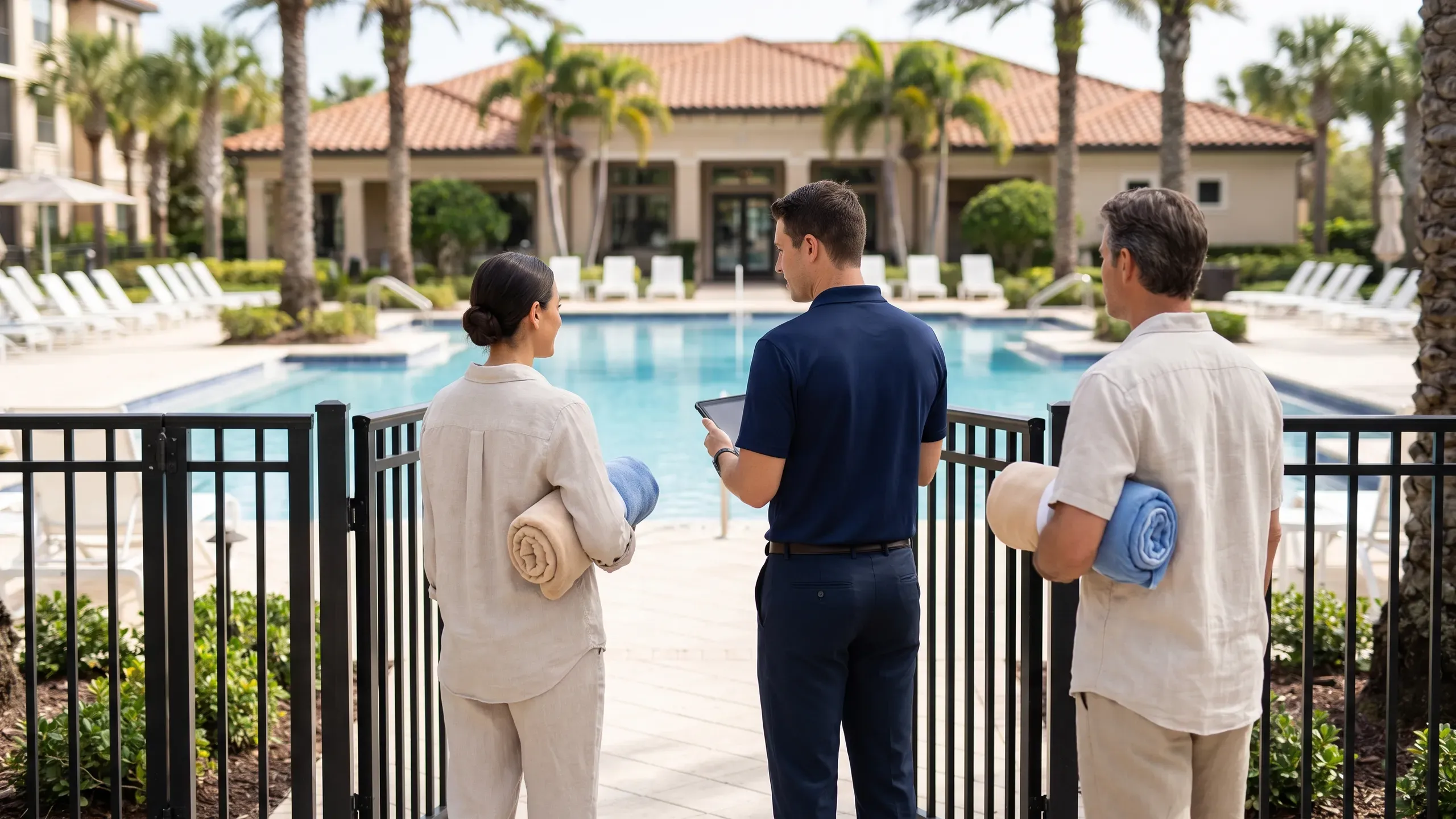
What the attendant does
- Register the tablet once. Open app.poolcheckin.com, sign in as a gate staff member and enter your pool's PIN. The tablet is asked once. An administrator can cancel its registration at any time.
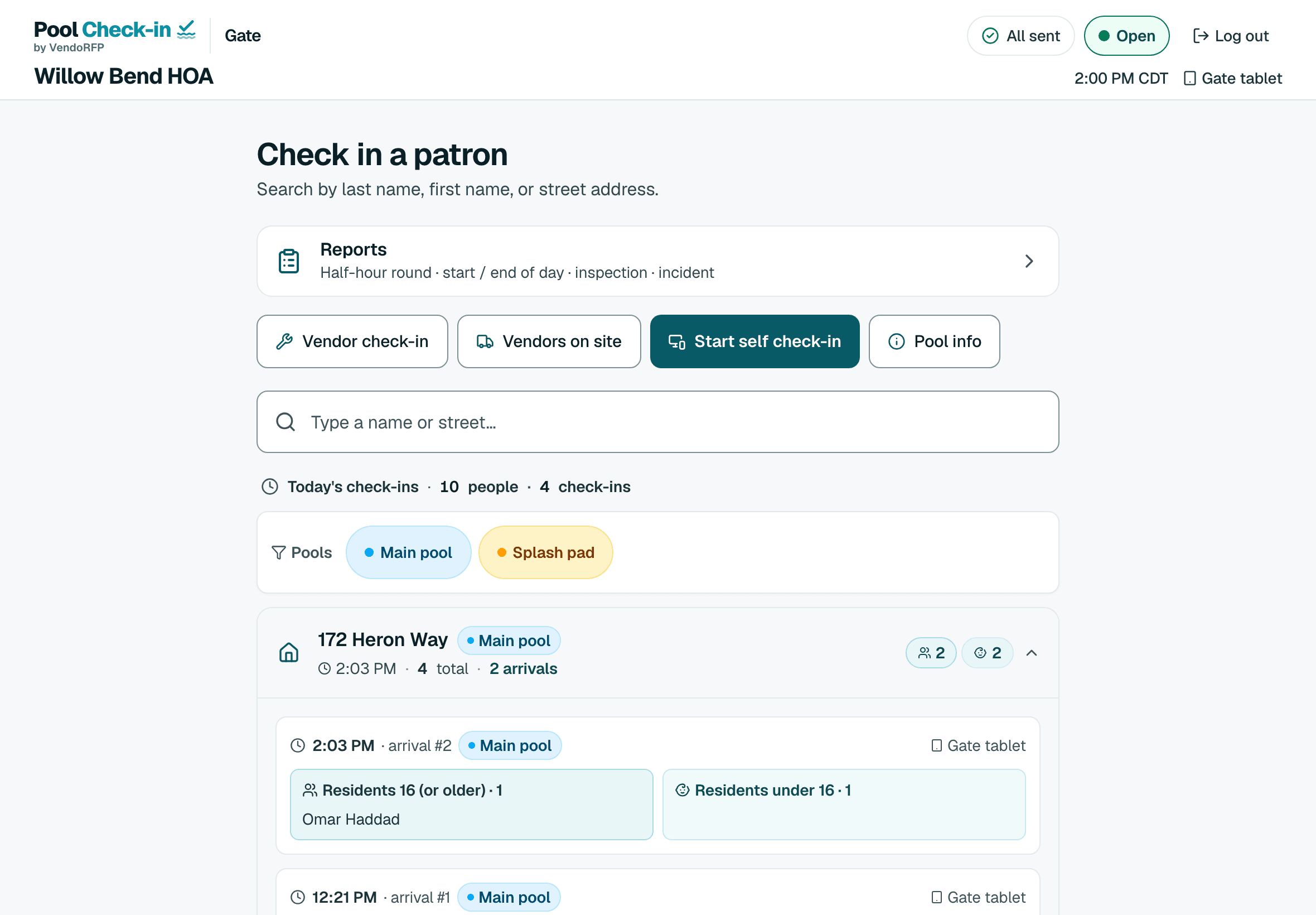
- Search. Type a last name, a first name or a street. The tablet keeps a copy of your roster, so search still works if the connection drops.
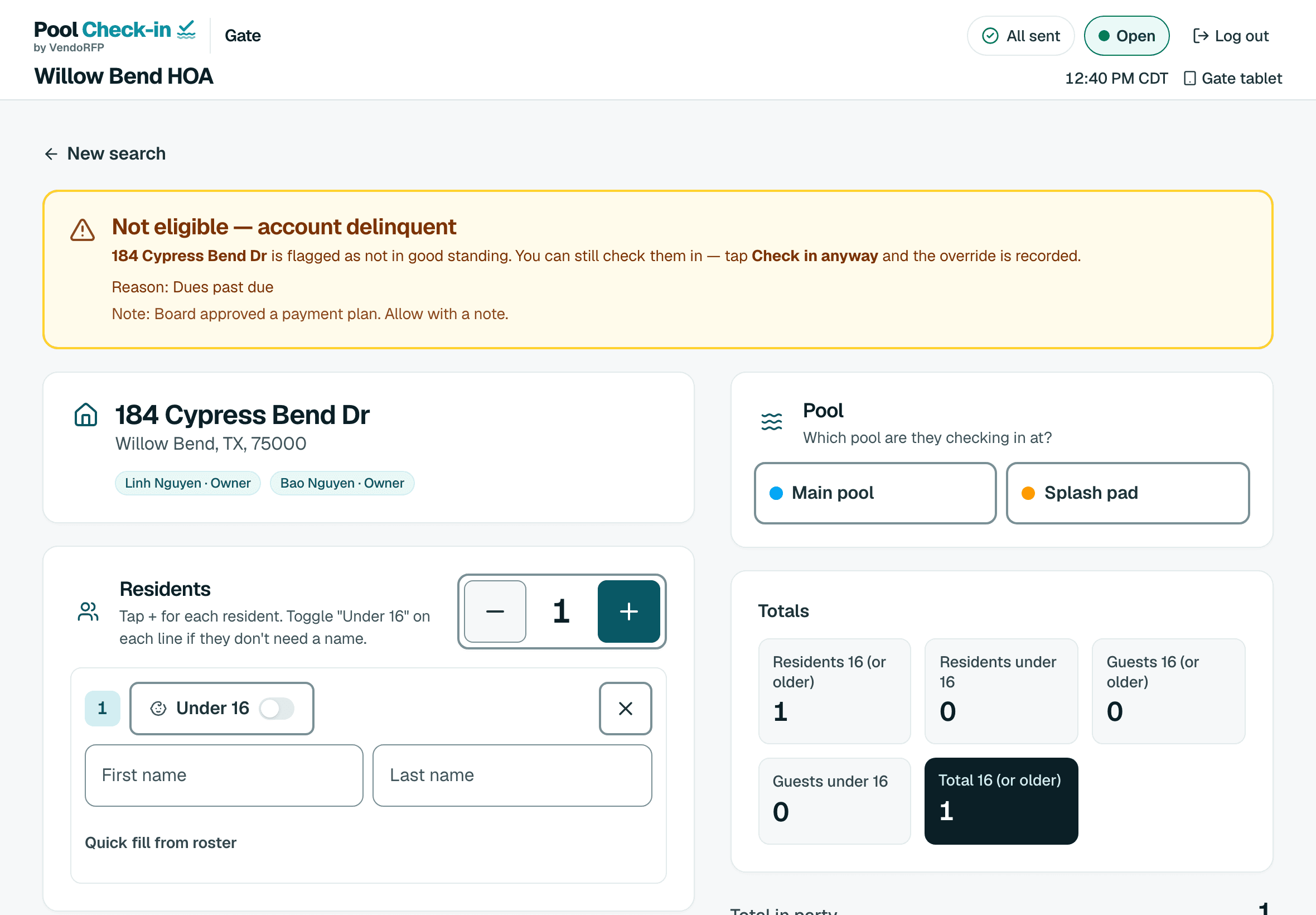
- Open the household and choose the pool. If the household has a standing note, such as behind on dues or barred, it shows above everything else.
- Tap who is here. Tap each resident, add guests and count anyone younger. Complete the check-in and it is on the record with the pool, the time and the attendant's name.
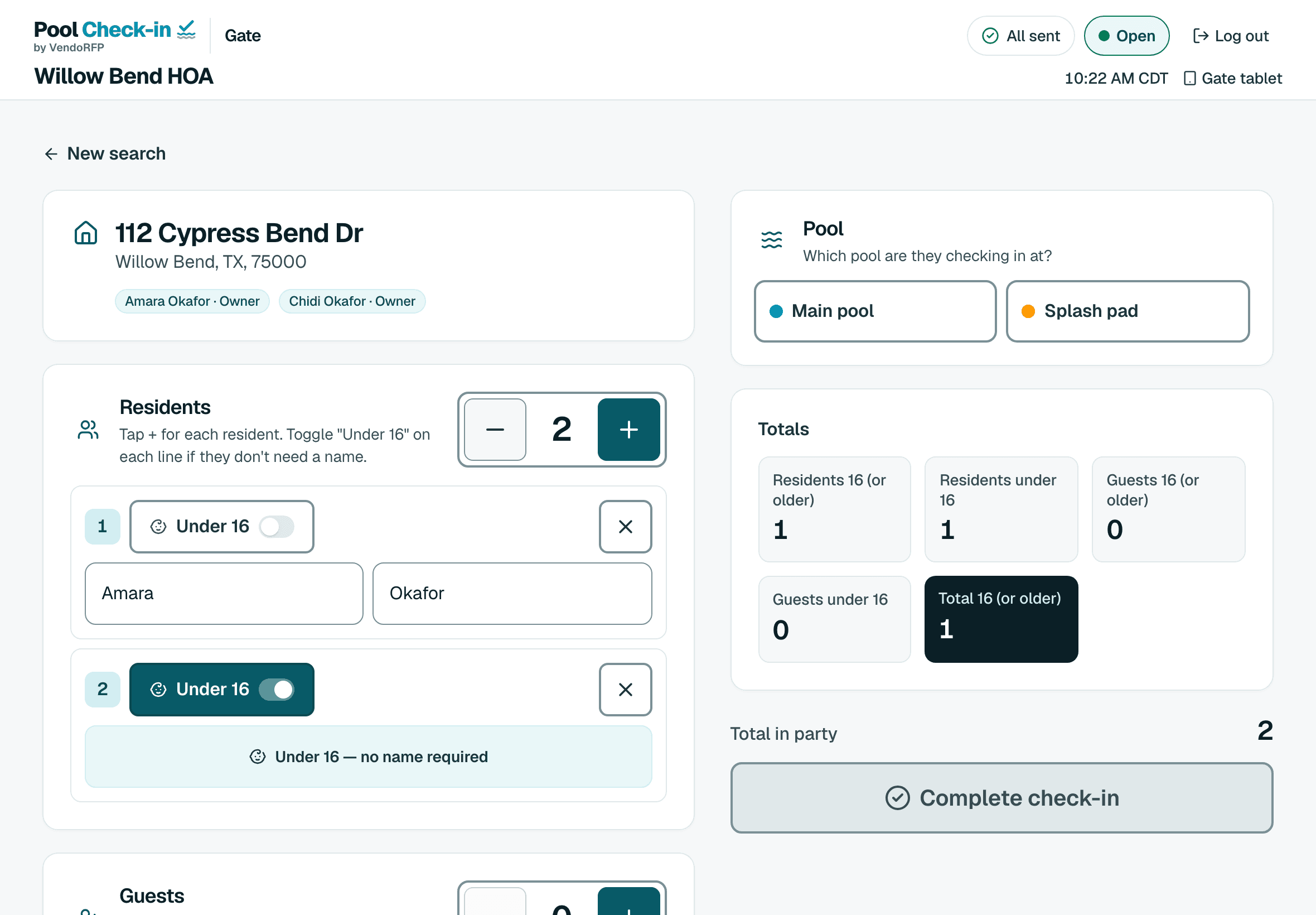
What else is on the screen
Two ways to check in
The detailed way names every resident and guest 16 or older and counts younger children. The quick way takes one name and a headcount.
Standing before the check-in
A barred or suspended household is stopped. A household behind on dues shows a warning with your note, and letting them in is recorded.
Reports and vendors
File half-hour rounds, opening and closing checklists, inspections and incidents with photos. Check vendors in and out, if you turn that on.
Walk-ins
People who are on no list check in by name and headcount, when your community switches walk-in check-in on.
Open or closed
The header shows whether the pool is open for the day's hours, and a badge shows whether anything is still waiting to send.
Start the kiosk
One tap starts self check-in for residents on the same tablet. The pool PIN ends it.
The screens staff use
Try it with one pool, free
Sign up, add your hours and your list if you have one, and register a tablet at the gate.