Import your Buildium list
Export it from Buildium, upload the file and check the preview. A direct Buildium connection is on request.
Four steps
Export from Buildium
In Buildium, open Settings, then Export Data, and download the Associations file. It is an Excel workbook.
Or run an association owner report and export it as Excel or CSV.
File type: Excel (.xlsx) or CSV.
Upload in Pool Check-in
Open your community, choose the resident upload and pick the file. A Google Sheet link works too.
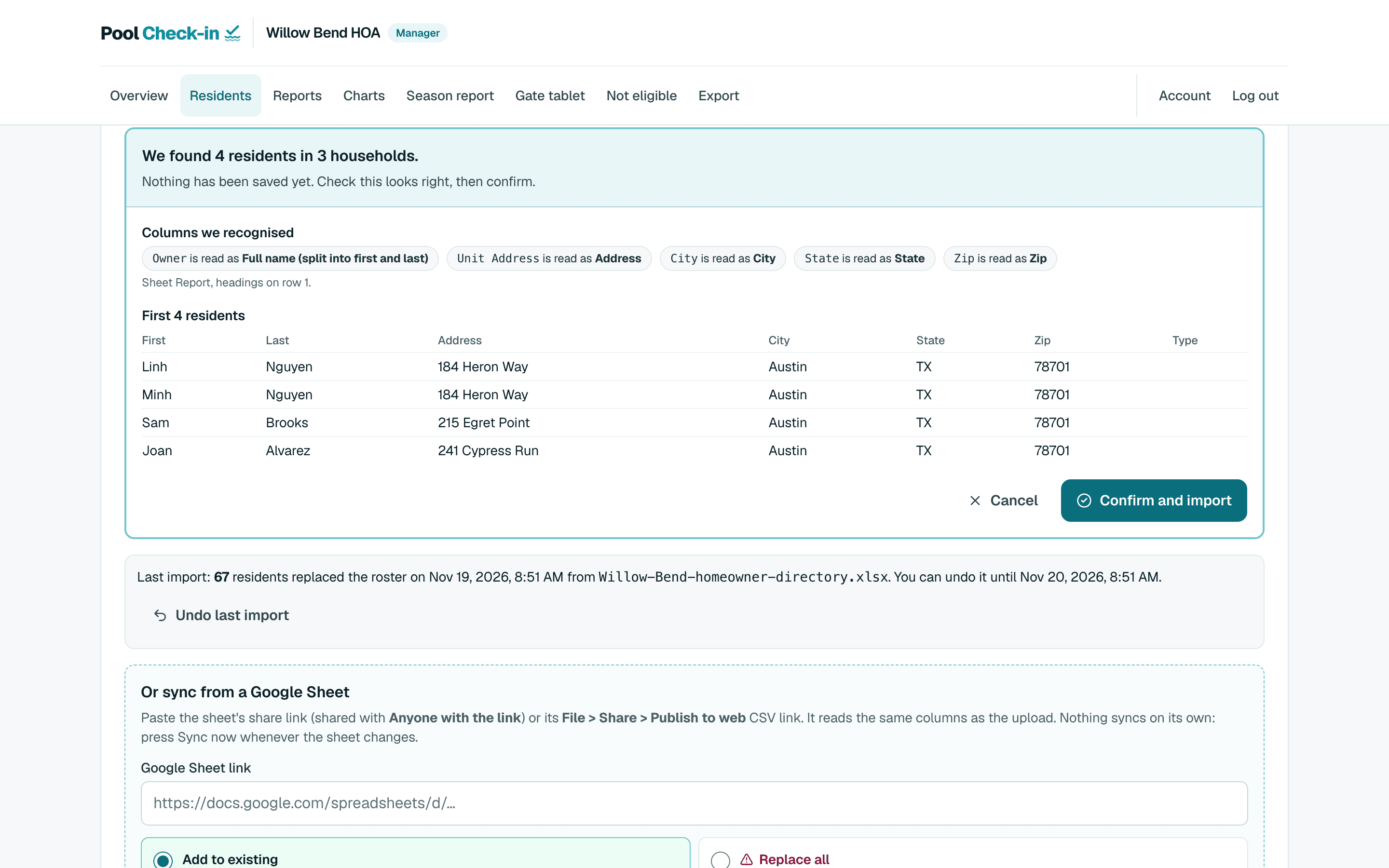
Check the preview
It shows the columns it found, how many residents and households, and any row it would skip, with the reason.
Done
Confirm and the list is saved. Nothing is saved before you confirm, and you can undo the import for 24 hours.
How the import reads your file
Owner lists with a name column (or first and last name) and an address column import. We have not tested this export yet. If your file doesn’t read cleanly, send it to us and we will help.
A direct Buildium connection is on request. Ask us about it and we will reply by email.
The preview before anything is saved